SAS JMP 13 PRO for Windows Installation Instructions
CWRU UTECH SOFTWARE CENTER
PLEASE NOTE THAT THE INSTALLER WINDOW MAY BE UNDER THIS BROWSER
WINDOW
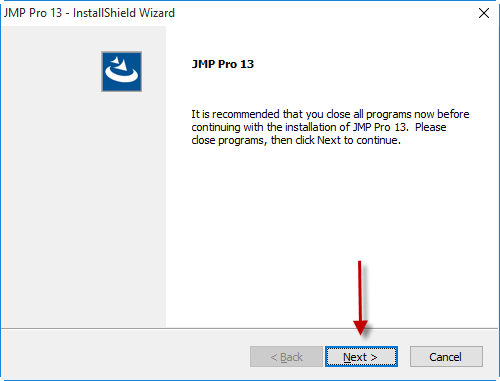
Welcome screen, press “Next>” to continue.
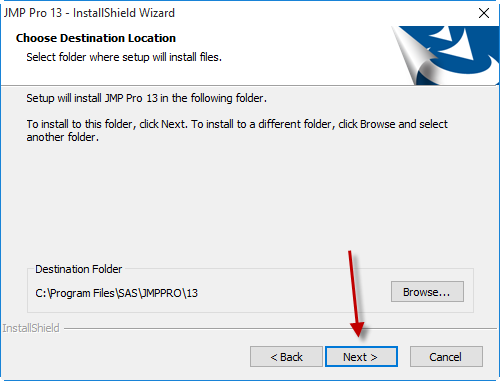
You may choose a different installation folder by clicking “Browse…”, or keep
the default location. Press “Next>” to continue.
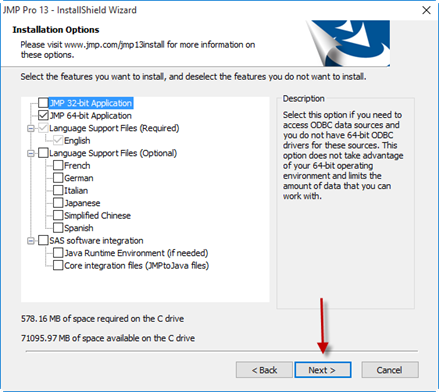
You may select optional features and add-ins. You may see different options
than
shown here depending on the version of Windows and if you have Microsoft
Office installed. You may keep the defaults for the easiest installation.
Press “Next>” to continue.
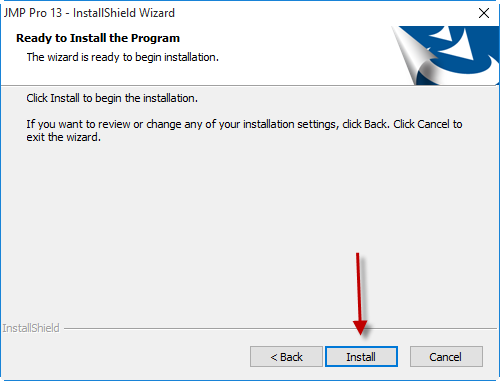
Ready to install, press “Install” to start the installation process.
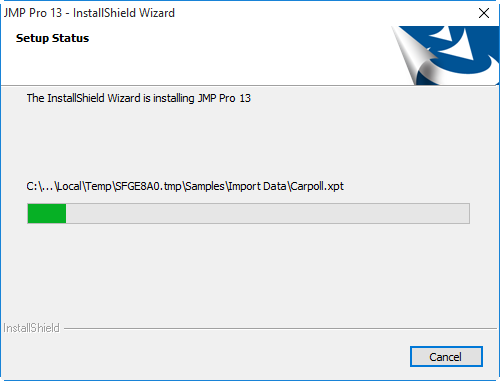
Installation is in progress, please wait…
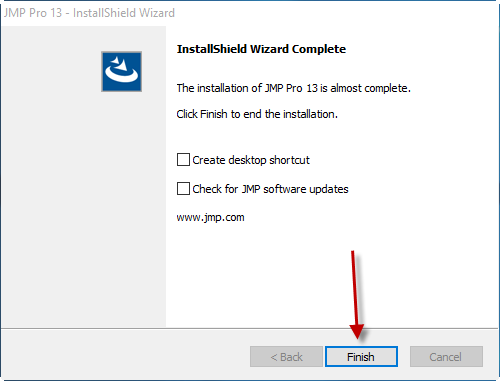
Installation has completed, press Finish to exit the installer.
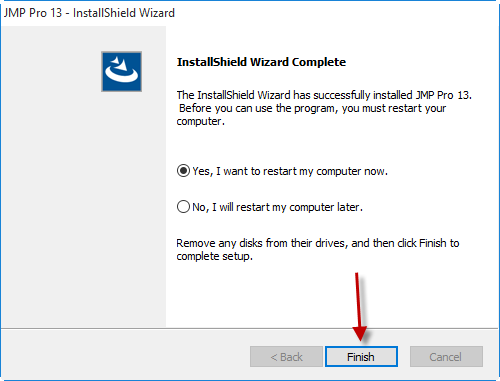
OPTIONAL – Under certain conditions you may be prompted to restart your
computer.
Choose to restart now or later but be sure to restart your computer before
using
SAS JMP if you are prompted to restart.
For installation help, please call the CWRU UTech Help Desk at 216-368-HELP